
Download a single-column Word (.docx) or text-based PDF template, and keep your name and contact details in the body, not a header. Use standard section headings like "Experience" and "Skills," swap in your own content, and mirror two or three keywords straight from the job posting. Then export it as a selectable PDF or .docx and run a parse test before you hit submit.
TL;DR:
- Use a simple, single-column .docx or plain text-based PDF, avoiding text boxes, columns, and graphic elements that can confuse parsers.
- Always place contact information in the main body of the document and use standard section headings like "Experience" and "Skills."
- Mirror the exact job-specific keywords in your professional summary, skills list, and work experience bullets to improve parsing accuracy and relevance.
- Test your exported resume by copying text from the PDF into a plain text editor and checking that it remains correctly formatted and easy to select.
- Replacement of generic job titles with exact postings, trimming vague skills, and focusing bullets on measurable results greatly enhance recruiter recognition and ATS performance.
Table of Contents
- Where to Find a Reliable ATS Resume Template
- How to Edit and Export a Template Without Breaking It
- The ATS Formatting Checklist You Actually Need
- A Copy-Paste ATS Skeleton You Can Use Today
- Exporting and Testing Your Resume Before You Apply
- Placing Tools, Projects, and Certifications on a Tech Resume
- What Recruiters Actually Fix First
- Get Your Resume in Front of the Right Hiring Managers
- Sources
- FAQ
Where to Find a Reliable ATS Resume Template
Not every template labeled "ATS-friendly" actually is. The safest starting point is Microsoft Word, because its ATS-friendly resume and cover letter templates gallery lets you preview, select, and edit a template directly in Word for the web, then export it without touching a design tool that might scramble the layout. Microsoft even recommends using Copilot to pull keywords from a job description and drop them into the right sections, which turns Word into both your template source and your tailoring tool.
Word wins on reliability for one simple reason: parsing software reads .docx files the way it was built to. Design platforms were not built with that priority in mind.
Free template libraries are a solid second stop, especially if you want role-specific starting points instead of a single generic layout. ResumeAtlas offers a range of free ATS-compatible resume templates in Word, Google Docs, and plain text, built around a single-column skeleton that parsers can read cleanly. ResumeWorded takes a similar approach, aggregating Word and Google Docs templates that it says are vetted by recruiters, with both free and premium variants. If you're early in your career, an entry-level variant with a shorter experience section tends to parse just as well as a senior template with more content blocks, so pick the one that matches your career stage rather than the flashiest option.
Canva deserves a specific warning here. Testing from CV Review found that many popular Canva-style designs fail basic parsing checks because they rely on text boxes, columns, and graphic elements that applicant tracking systems either skip or misread entirely. That doesn't mean Canva is off-limits. It means you should never export a Canva design straight into an application. If you like a Canva layout's structure, rebuild the actual content in Word or Google Docs before you submit anything.
A few rules of thumb for choosing your starting file:
- Default to Word (.docx) unless you have a specific reason not to.
- Treat any Google Docs template from a public gallery with suspicion until you check its underlying structure.
- Skip Canva exports entirely for the final application file.
- Consider a plain-text or LaTeX option if you're applying to engineering-heavy roles where recruiters expect technical fluency.
How to Edit and Export a Template Without Breaking It
Editing an ATS resume template for parsing is different from editing one for looks. Each platform has its own failure points, so the steps below are organized by tool.
- In Microsoft Word, use the built-in Heading styles (Heading 1, Heading 2) for your section titles instead of manually bolding and resizing text. Keep your name, phone number, and email in the main body of the document, never in a header or footer, since some parsers skip those regions entirely. Save your final file as .docx or export to a text-based PDF using File → Export.
- In Google Docs, start from a blank document or paste in a plain-text skeleton rather than pulling from the template gallery, since many of those templates use invisible tables for spacing that confuse parsers. When you're done, go to File → Download and choose PDF or .docx, both of which preserve the underlying text.
- In Canva, don't export a finished design for an ATS application at all. If you're attached to a layout, copy the wording into a Word or Google Docs file and rebuild it as plain text, keeping the same section order and content.
- In Overleaf, choose a simple single-column template rather than a two-column academic CV layout. A public single-column Overleaf/LaTeX resume template built for ATS use shows that a compiled LaTeX file can produce a fully selectable PDF, as long as you avoid multi-column floats and never place your contact information inside a header block.
Pro Tip: After exporting from any platform, open the PDF and try to highlight and copy a paragraph of text. If you can select and paste it into a plain text file with the words in the right order, your parser will likely read it the same way.
The ATS Formatting Checklist You Actually Need
Indeed's guidance on writing an ATS-friendly resume is consistent on one point: simple formatting beats clever formatting every time. No graphics, no tables, no columns, and a reverse-chronological work history that lists your most recent job first.
Here's what that looks like as a working checklist:
- Layout: Single column, no text boxes, no tables, no embedded images or icons.
- Section order: Contact info, professional summary, skills, experience, education, certifications.
- Section headings: Use exact, standard labels — "Experience," "Skills," "Education" — instead of creative alternatives like "Where I've Made an Impact."
- Fonts: Stick to Arial, Calibri, or Georgia at 10 to 12 points; avoid script or condensed fonts that some parsers render as garbled characters.
- Dates: Format consistently as "Month Year to Month Year" (e.g., January 2023 to Present) throughout the entire document.
- Contact info placement: Always in the body of the resume, never in a header or footer.
- Skills formatting: List individual skills separated by commas or on separate lines, not embedded in dense paragraphs where a parser has to guess where one skill ends and the next begins.
Keyword placement matters as much as formatting. Mirror the job posting's specific terms in three spots: your professional summary, your skills block, and inside your experience bullets where the context makes sense. A recruiter-backed guide to IT resume skills makes the case that exact job terms outperform generic buzzwords, since a parser searching for "Kubernetes" will not credit you for writing "container orchestration expertise" instead.
The reason this all matters comes down to a basic mismatch: a human hiring manager can infer meaning from a stylized layout, but Indeed notes parsing software often cannot, which is exactly why the same visual choices that make a resume look sharp to a person can make it invisible to a machine.
A Copy-Paste ATS Skeleton You Can Use Today
Below is a plain-text skeleton built on the same single-column structure recommended in ResumeAtlas's ATS template library. Paste it into Word or Google Docs and replace every line with your own information.
[Full Name]
[City, State] | [Phone Number] | [Email Address] | [LinkedIn URL]

PROFESSIONAL SUMMARY
[2-3 sentences summarizing years of experience, core skill set, and one measurable achievement]

SKILLS
[Skill 1], [Skill 2], [Skill 3], [Skill 4], [Skill 5], [Skill 6]

EXPERIENCE
[Job Title] | [Company Name] | [Month Year] to [Month Year]
[Achievement bullet with a number]
[Achievement bullet with a number]

EDUCATION
[Degree] | [School Name] | [Graduation Year]

CERTIFICATIONS
[Certification Name], [Issuing Organization], [Year]
The table below shows how the same skeleton translates into real bullets across career stages, all built around action verbs and measurable outcomes rather than vague descriptions.
| Career Stage | Sample Bullet |
|---|---|
| Entry-level | Built a customer support ticketing dashboard in Python, cutting average response time |
| Mid-level | Led a team of four engineers migrating a legacy database to AWS, reducing query latency |
| Senior | Directed cybersecurity policy for a mid-sized organization, reducing phishing incident rates year-over-year |
Job title, company, and dates always sit on one line together, in that order, so a parser can extract them as a single work-history block rather than three disconnected fragments. For more example bullets by industry, Pluck Talent's resume ideas guide breaks down phrasing by role type.
Exporting and Testing Your Resume Before You Apply
Getting the file right doesn't stop at editing. Confirm it actually parses before you send it anywhere.
- Export your final resume as .docx or a text-based PDF, then reopen it and try to select a full paragraph of text with your cursor. If the text highlights cleanly, it's selectable and machine-readable, not a flattened image.
- Copy that same text and paste it into a plain text editor like Notepad or TextEdit. Check that your section headings, contact info, and job history still appear in the correct order with no scrambled characters.
- Run the file through a free ATS checker to see how it parses in practice, then fix whatever it flags: remove any header or footer content, flatten remaining tables into plain paragraphs, and convert icons or symbols into written words.
ResumeAtlas's guidance on this point is blunt: confirming selectable text is a five-minute step most candidates skip, right before they wonder why a strong resume never gets a callback.
Placing Tools, Projects, and Certifications on a Tech Resume
Technical hiring managers and the parsers scanning for them are both looking for the same thing: exact tool names, not descriptions of tool categories. A dedicated line early in your resume, something like "Technologies: Python, AWS, Terraform, Kubernetes," gives both audiences what they need in one scan.
- List exact tool names and version numbers where relevant (e.g., "React 18" instead of just "React").
- Describe each project in one short contextual line, followed by tech tags in parentheses, so a recruiter sees the outcome and the stack at once.
- Include plain-text portfolio or GitHub links directly in your contact block rather than as embedded hyperlinks buried in a design element.
- Move your projects section above education once you have two or more years of professional experience; keep it below education if you're still job-hunting straight out of school.
- List each certification as its own line item with the issuing organization and year, rather than folding certifications into your skills list.
This structure lines up with what a single-column LaTeX ATS template built for developers demonstrates: a short technologies line paired with a separated skills block near the top increases both keyword hits and human scannability at the same time. Pro Tip: If you're applying to five different roles across cloud, security, and DevOps, keep five slightly different skills blocks saved and swap the relevant one in for each application instead of trying to cram every tool you know into a single version.
For a deeper breakdown of how to structure the experience section specifically for engineering and security roles, The ATS resume format that actually gets you past the bots covers bullet structure in more detail than a general template can.
What Recruiters Actually Fix First
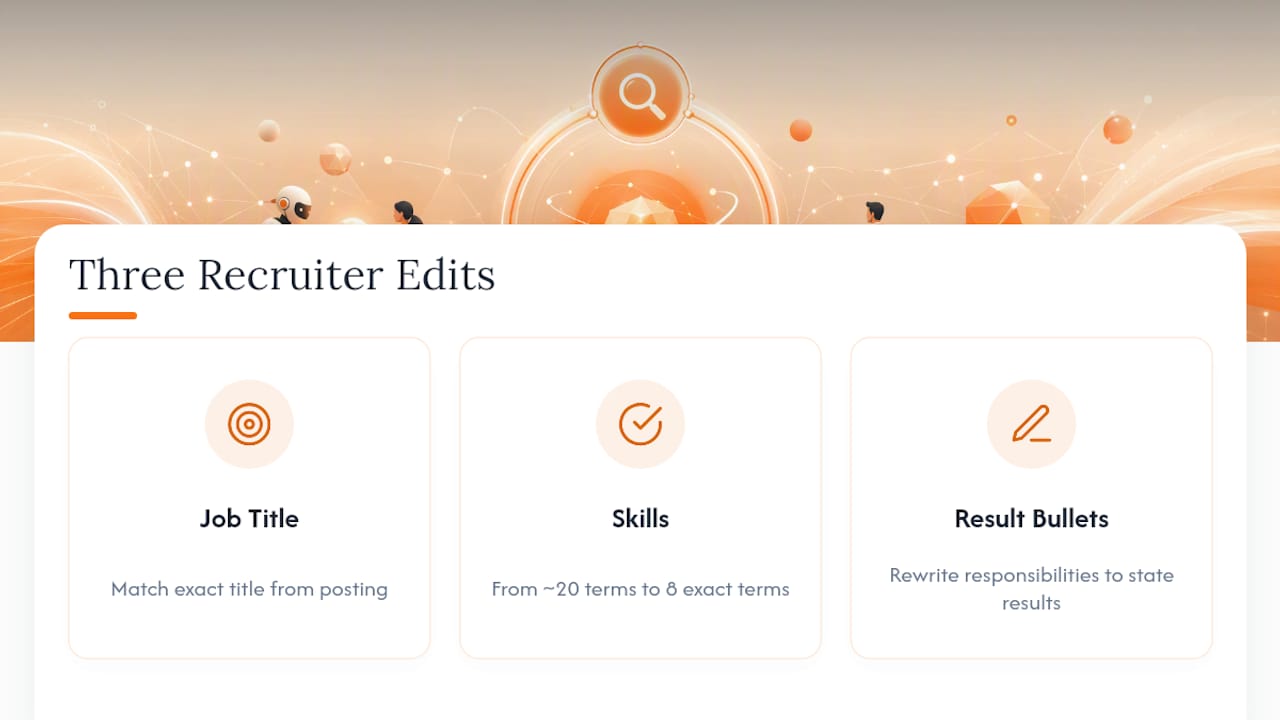
Three edits show up in almost every resume Pluck Talent's recruiters rework before submitting a candidate. First, generic job titles get replaced with the exact title used in the job posting, since parsers weight title matches heavily. Second, skills lists get trimmed from 20 vague terms down to eight exact ones pulled from the posting itself. Third, bullets that describe responsibilities get rewritten to state results.
A quick before-and-after makes the pattern clear.
None of these fixes require design skill. They require knowing which fifteen words in a job posting actually matter, and that's the piece most job seekers get wrong on the first draft.
— Diego
Get Your Resume in Front of the Right Hiring Managers
There are alternative services that use AI to read job descriptions and adjust your resume's summary, skills, and bullets to match, then present the finished version directly to hiring managers instead of through a job board queue.
For IT and cybersecurity professionals, that direct connection matters more than an extra hour spent tweaking font sizes. The Job Seekers page at Pluck Talent walks through what's included: a resume review against real job postings, AI-assisted tailoring for each application, and introductions to hiring managers at companies actively hiring for your specific skill set, bypassing the noise of a generic job board. If you've already built a clean, ATS-compliant resume using the templates above and want it working harder for you, start with Pluck Talent's job seeker platform and see which roles it surfaces first.
Sources
- Free ATS-Friendly Resume Templates — Word, Google Docs & CV
- Professional resume templates optimized for ATS
- ASG ATS Resume Template (LaTeX)
FAQ
How Do I Make My Resume 100% ATS-Friendly?
No single template guarantees a hire, but combining a single-column .docx or text-based PDF, standard section headings, and keyword mirroring from the job posting minimizes parsing errors more than any other single fix. Export and test your file with a parse check before submitting it.
Is Canva Safe to Use for an ATS Resume?
Design-first Canva templates frequently fail parsing checks because of text boxes and graphic layouts, so the safer approach is to rebuild your final content in Word or Google Docs rather than exporting a Canva design directly for an application.
Should I Use a Header for My Contact Information?
No. Keep your name, phone number, and email in the main body of the document, since some ATS parsers skip header and footer regions entirely and may fail to register your contact details.
Can a LaTeX Resume Pass an ATS Scan?
Yes, a simple single-column LaTeX template compiled into a selectable PDF can pass ATS parsing, as long as it avoids multi-column layouts and doesn't place contact information inside header floats.
What File Format Should I Export My Resume As?
A .docx file or a text-based PDF are both safe choices, since each preserves selectable, machine-readable text rather than flattening your resume into an image that a parser cannot read.